
You’ve decided to move your WordPress website to a new host. Simple enough, right? But as you start the WordPress website migration, you hit an unexpected roadblock: permission errors or the files and folders on your site aren’t writable.
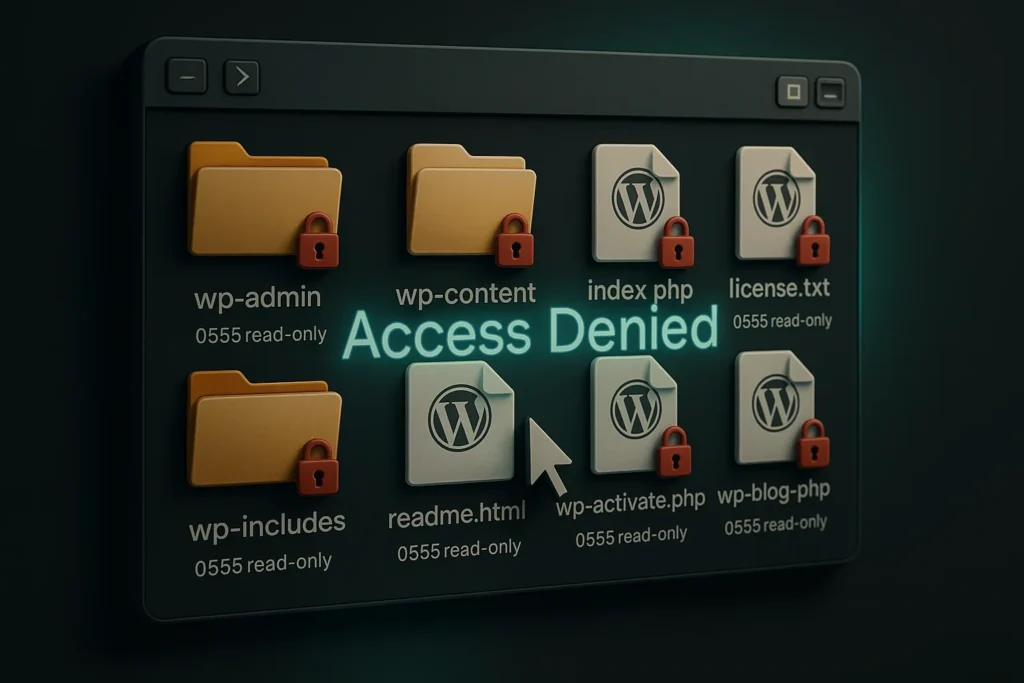
Most of them are locked down with permission mode 0555. In plain English, this means they’re “read-only” — you can view them, but you can’t make any changes. And if you can’t change them, you can’t migrate them.
So what do you do? Let’s break it down.
Why Are Your Files and Folders Not Writable?
This issue usually happens for one of three reasons:
1. Host Defaults – Some hosting providers set strict file permissions by default to prevent malicious scripts from altering your site.
2. Developer Restrictions – Sometimes developers intentionally lock files so only they can make changes.
3. Server Security Policies – On certain hardened servers, write access is restricted for safety until explicitly updated.
Whatever the case, the result is the same: your files are stuck in read-only mode.
Why Plugins Won’t Help
When you run into a file permission error, your first thought might be: “I’ll just use a WordPress migration plugin.” But here’s the catch — if files and folders aren’t writable, you can’t install or activate a plugin in the first place.
So in this situation, plugin-based migration tools are off the table.
The Smart Solution: Batch Permission Change with PHP
Manually fixing permissions through your FTP client is technically possible, but with hundreds (or even thousands) of files, it’s not realistic. You’d be there all day.
Instead, a faster solution is to batch-change file permissions using a PHP script.
Here’s a safe, simplified version you can use:
<?php
// Batch change file and folder permissions in WordPress root
$root = __DIR__;

$iterator = new RecursiveIteratorIterator(
    new RecursiveDirectoryIterator($root, RecursiveDirectoryIterator::SKIP_DOTS),
    RecursiveIteratorIterator::SELF_FIRST
);

foreach ($iterator as $item) {
    if ($item->isDir()) {
        chmod($item, 0755); // folders
    } else {
        chmod($item, 0644); // files
    }
}

echo "Permissions updated successfully!";
?>
Here’s how to use it:
- Save the script as fix-permissions.php.
- Upload it to the root folder of your WordPress site.
- Open it in your browser (e.g., https://yoursite.com/fix-permissions.php).
- Once it runs successfully, delete the file immediately for security.
Migration Back on Track
After fixing permissions, your WordPress hosting transfer can continue without a hitch. You’ll be able to copy, move, and configure files normally.
Key Takeaways
- File permission errors can block your WordPress website migration completely.
- Causes include host defaults, developer restrictions, or server security policies.
- Migration plugins won’t work if files aren’t writable.
- A simple batch PHP script can reset permissions in minutes.
- Always delete the script immediately after use for security.
FAQs About File Permission Errors in WordPress
What are the safe file permissions for WordPress?
The recommended permissions are 755 for folders and 644 for files. These settings keep your site secure while allowing necessary write access.
Can I fix file permission errors from cPanel instead of using PHP?
Yes. Most hosting providers with cPanel allow you to bulk-change file and folder permissions through the File Manager. However, if you have thousands of files, it may still be slower than using a script.
Why can’t I just use a migration plugin?
Migration plugins need to write files during installation and operation. If your site is locked with read-only permissions, installing or running these plugins isn’t possible.
Are file permissions the same as ownership?
Not exactly. Permissions control what can be done with a file (read, write, execute), while ownership determines who has control over it. Sometimes fixing ownership via SSH or hosting support is necessary if permissions alone don’t solve the problem.
Should I leave the PHP script on my server for future use?
No. Always delete the script immediately after running it. Leaving it on the server is a major security risk.